

Overview
If you manage client tenants through Microsoft Partner Center, you can connect Petra directly to your CSP account. This lets you see all of your GDAP-managed tenants in one place, onboard them to Petra without needing each client’s Global Admin to approve individually, and manage permissions across tenants from a single table. Partner Center integration is available at app.petrasecurity.com/portal and is also offered during onboarding.Prerequisites
Before connecting, confirm the following:- You have a Microsoft Partner Center account with active GDAP relationships for the tenants you want to manage.
- The user connecting Partner Center is in the AdminAgents security group in your MSP tenant.
- The Azure AD application Petra M365 Security Analyzer is registered with delegated permissions. If you have not done this before, Petra will walk you through it during setup.
Connecting Partner Center
- Go to app.petrasecurity.com/portal, or click Add Tenant from the navbar and choose Continue with Partner Center.
- Click Connect Microsoft Partner Center.
- Sign in with your MSP tenant credentials on the Microsoft login page and consent to the requested permissions.
- After approval, you are redirected back to Petra. Your managed tenants will appear automatically.
You can also connect Partner Center during onboarding. The flow is the same; you will be redirected back to the onboarding wizard when finished.
Managing Tenants
Once connected, the managed tenants table shows every client tenant that has an active GDAP relationship with your MSP.What the table shows
Syncing tenants
Petra automatically syncs your managed tenants from Microsoft Partner Center each time you open the managed tenants page. You can also manually sync by clicking Sync Tenants (in the overflow menu at the top of the table). Both actions query your GDAP relationships and update tenant names, user counts, and permission status.GDAP permission requirements
To onboard a tenant through Partner Center, your GDAP relationship must include either:- Global Administrator, or
- Application Administrator or Cloud Application Administrator, plus Privileged Role Administrator
Create Petra GDAP Relationship
If a tenant’s GDAP relationship is missing one or more of the required roles, you can create a new GDAP relationship request directly from Petra instead of building it manually in Microsoft Partner Center. Petra generates the request with all of the roles it needs, so the relationship is ready for onboarding as soon as the client approves it.- If a tenant shows Missing under GDAP Permissions, click Create Petra GDAP Relationship in the Actions column.
- If a tenant shows Ready but you need to update the GDAP relationship with additional roles, click Re-request Permissions in the Actions column. This creates a new GDAP relationship request that includes all required roles for Petra.
New GDAP relationship requests can take up to 15 minutes to appear in Microsoft Partner Center. If the client’s admin opens the approval link right away and sees the error “The GDAP invitation was not found” on the Accept partner agreement page, the request is still propagating. Wait up to 15 minutes and try the link again.
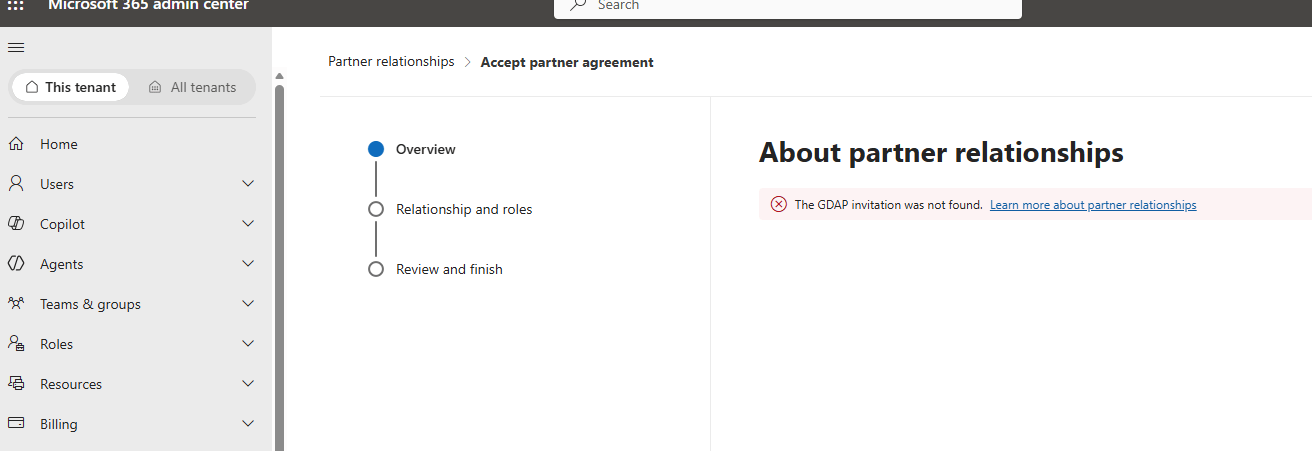
Partner Center 'Accept partner agreement' page showing 'The GDAP invitation was not found' error
Onboarding a Tenant
- Find the tenant in the managed tenants table.
- Confirm that GDAP Permissions shows Ready.
- Click Onboard. The Add Tenant modal opens.
- Review the defaults and adjust if needed (Petra Response, Scan-only). See Onboard a Tenant for details.
- Review the Review Onboarding summary, then click Onboard Tenant.
Refreshing email permissions
If a tenant’s email permissions need to be refreshed (for example, after permissions were revoked or modified), you can refresh them directly from the managed tenants table:- Find the tenant in the managed tenants table.
- Click Refresh in the Email Perms column for that tenant.
- Assigns GDAP access if needed (using the Assign User flow)
- Runs the consent flow to grant all Graph permissions on the service principal
- Updates delegated permissions (oauth2PermissionGrants) for Microsoft Graph
- Grants application permissions (appRoleAssignments) required for email operations
If the refresh operation fails, Petra will display an error message with instructions. In some cases, you may need to use the admin-consent URL fallback that Petra provides.
Batch onboarding
You can onboard multiple tenants at once. Select the tenants you want using the checkboxes, then click Onboard. The Add Tenant modal opens showing how many tenants are selected, with an expandable list of tenant names. Review the defaults and click Onboard to apply the same settings to all selected tenants.Migrating Legacy Tenants
If you originally onboarded a tenant individually (outside of Partner Center) and later established a GDAP relationship with that tenant, you can migrate it to Partner Center management. Migrating gives you the same centralized permission management and bulk operations available to tenants that were onboarded through Partner Center. Legacy tenants are marked with a Legacy badge in the managed tenants table.What migration does
When you migrate a legacy tenant, Petra:- Assigns your user to the GDAP relationship for the tenant. If this step fails, migration stops and you see an error. See Could not assign user to GDAP relationship for how to resolve it.
- Installs the Partner Center application into the client tenant using your GDAP relationship.
- Grants all required Graph and Exchange permissions through the Partner Center app.
- Verifies that every required permission was granted successfully.
- Switches the tenant to use the Partner Center app instead of the individually installed app.
Migration does not remove the original individually installed app from the client tenant. It remains in the tenant but is no longer used by Petra. You can remove it manually from the client’s Azure AD if you want to clean up.
Prerequisites
Before migrating a legacy tenant, confirm the following:- The tenant has an active GDAP relationship with your MSP that includes the required admin roles (Global Administrator, or Application Administrator or Cloud Application Administrator plus Privileged Role Administrator).
- The tenant’s GDAP Permissions column shows Ready in the managed tenants table.
- The tenant is currently onboarded and shows the Legacy badge.
Migrating a single tenant
- Find the legacy tenant in the managed tenants table (look for the Legacy badge).
- Click Migrate to Partner Center in the Actions column.
- Confirm the migration in the modal that appears.
- Petra installs the Partner Center app, grants permissions, and verifies them. This typically takes a few seconds.
- When migration completes, the Legacy badge is removed and the tenant is managed through Partner Center.
Batch migration
You can migrate multiple legacy tenants at once. Select the legacy tenants using the checkboxes, then click Migrate to Partner Center. Petra processes them in the background and updates the table as each one completes.Re-authenticating
If your OAuth session expires or you need to switch the connected account, open the overflow menu at the top of the table and click Re-authenticate with Microsoft Partner Center. This runs the same Microsoft sign-in flow as initial setup and replaces the stored credentials.How Petra Connects to Your Partner Center
Step 1: Initial authentication
When you connect Partner Center, Petra redirects you to Microsoft’s login page (login.microsoftonline.com) where you sign in with your MSP tenant credentials. You are asked to consent to the following permissions:
- Microsoft Graph:
DelegatedAdminRelationship.Read.All,DelegatedAdminRelationship.ReadWrite.All,User.Read.All,Organization.Read.All,Directory.ReadWrite.All,Application.ReadWrite.All,AppRoleAssignment.ReadWrite.All,DelegatedPermissionGrant.ReadWrite.All - Partner Center API:
user_impersonation
Step 2: Discovering client tenants via GDAP
When you sync tenants, Petra uses the stored refresh token to get a Microsoft Graph access token, then queries thetenantRelationships/delegatedAdminRelationships endpoint filtered to status eq 'active'. This returns only GDAP relationships that have been explicitly approved by the client tenant. Petra reads the roles and customer tenant IDs from these relationships and stores them locally for display.
Step 3: Onboarding a client tenant
When you click Onboard, two things happen:- Delegated permission consent via Partner Center API. Petra calls the Partner Center
/v1/customers/{tenantId}/applicationconsentsendpoint. This is Microsoft’s CPV (Control Panel Vendor) API, which installs the Petra application into the client tenant and grants delegated permissions (Graph, Exchange, Office 365 Management APIs). This operation is governed by the GDAP relationship and only succeeds if an active relationship with the required admin roles exists. - Application permission grants via Graph API. After the service principal is installed, Petra obtains a customer-tenant-scoped Graph token (using the GDAP relationship) and creates
appRoleAssignmententries on the Petra service principal. These are the application-level permissions needed for background operations like reading audit logs and managing mailbox settings without user context.
Security
- All access is mediated through GDAP. Petra cannot access any client tenant that has not approved a GDAP relationship with your MSP. If the relationship is terminated or expires, access is revoked.
- Delegated context. The Partner Center consent and Graph API calls operate in the context of the authenticated MSP admin user, bounded by their GDAP role assignments.
- No direct credentials. Petra does not store or use any client tenant passwords, certificates, or secrets. Access is entirely through OAuth tokens derived from the GDAP relationship.
- Revocable at any time. You can disconnect Partner Center from Petra at any time. Client tenants can terminate the GDAP relationship to immediately revoke access.
Connected user is missing Partner Center access
Before you can onboard any tenant, the connected Partner Center user has to be able to manage GDAP from your own MSP tenant. Petra checks this on the managed tenants page and, if either requirement below is missing, shows a banner and disables Onboard and Scan until it is fixed. Both are one-time setup steps in your own MSP tenant, and your customers are not involved. The page re-checks every few seconds, so the banner clears on its own once the change takes effect (a hard refresh also works).Grant the Groups Administrator role
Petra creates a security group named Petra GDAP Access Group in your MSP tenant to hold the GDAP access assignments. Creating and managing that group requires the Entra Groups Administrator role (Global Administrator also satisfies it). If the connected user does not have it, grant it:- Sign in to the Microsoft Entra admin center with an account that can assign roles (Privileged Role Administrator or Global Administrator).
- Go to Identity → Roles & admins → Roles and open Groups Administrator.
- Click Add assignments, select the connected Partner Center user, and assign the role as Active.
- If Entra refuses with “this assignment already exists,” the user already has an eligible assignment through Privileged Identity Management (PIM), and Entra won’t allow a second active assignment on top of it. Eligible alone does not satisfy this banner, so fix it by activating the existing assignment instead:
- Go to Identity Governance → Privileged Identity Management → Microsoft Entra roles → My roles, find Groups Administrator under Eligible assignments, click Activate, and confirm.
- If the user does not use PIM, an active assignment already exists and should take effect within a few minutes, so no further action is needed.
- If your organization assigns roles through PIM, activate the eligible assignment under Identity Governance → Privileged Identity Management.
Add the user to the AdminAgents group
AdminAgents is a Microsoft-managed security group in your MSP tenant that grants delegated-admin (GDAP) capability. The connected user must be a direct member of it to create GDAP relationships and receive access assignments. You add the user to the group in Entra — there is nothing to select in the Partner Center role list:- Sign in to the Microsoft Entra admin center.
- Go to Identity → Groups → All groups and search for AdminAgents (usually written without a space).
- Open the group, select Members → Add members, and add the connected Partner Center user.
- Alternatively, go to Identity → Users, open the connected user, select Groups → Add memberships, and add AdminAgents.
Connection and sign-in errors
These errors happen while you connect or re-authenticate Partner Center, before any tenant is onboarded. Microsoft returns them during sign-in, and Petra shows the reason on the managed tenants page with a Try connecting again button.Tenant not set up for Partner Center
Microsoft rejected the sign-in (AADSTS650052) because the tenant you signed in with does not have the Microsoft Partner Center service principal. This almost always means you signed in with an account that is not in your Microsoft Partner Center (CSP) tenant, or that tenant has never consented to the Partner Center app.
- Sign in with a Global Administrator in your Partner Center (CSP) tenant, not a customer tenant or a secondary tenant.
- If that is the correct tenant, a Global Administrator must consent to the Microsoft Partner Center application so its service principal is created. Accept the consent prompt during sign-in.
- Confirm your organization has an active Microsoft Partner Center / CSP enrollment, then click Try connecting again.
Consent was declined
The sign-in was cancelled at the Microsoft permission prompt (AADSTS65004), so Petra was not granted the access it needs.
- Click Try connecting again.
- At the Microsoft prompt, review the requested permissions and click Accept.
- You must be signed in as an admin who can consent on behalf of the tenant.
Sign-in session expired
Your previous Partner Center sign-in expired or was revoked (AADSTS50173, AADSTS65001, AADSTS700082).
- Click Try connecting again and complete sign-in with your connected Partner Center account.
Partner Center Onboarding Errors
When onboarding fails, the tenant’s Petra Status column shows the error in red; hover to read the full message. Find your message below for what it means and exactly how to fix it. Most fixes are made in Microsoft Partner Center, the Microsoft Entra admin center, or the Microsoft 365 admin center of your MSP or the customer tenant.Most errors are resolved in the customer tenant or your MSP tenant, not in Petra. After making a change in Microsoft, wait a moment for it to propagate, then click Onboard again.
Connected user lacks GDAP access
The connected Partner Center user is not authorized to manage this customer tenant. It needs the Admin agent role in Partner Center and access to the customer’s GDAP security group.- In Partner Center, go to Settings → Account settings → User management and confirm the connected user has the Admin agent role.
- In Petra, click Assign User for the tenant — this adds the connected user to the GDAP security group and the relationship. (Or add the user to the group manually in Partner Center.)
- Retry, or re-authenticate with an account that already has access.
Missing Groups Administrator role
Petra could not create or update the Petra GDAP Access Group in your MSP tenant because the connected user lacks the Entra Groups Administrator role.- In the Microsoft Entra admin center, go to Roles & admins → Roles and open Groups Administrator.
- Click Add assignments and add the connected user. If the role is assigned through PIM, activate it under Identity Governance → Privileged Identity Management.
- In Petra, open the overflow menu (three dots) and click Re-authenticate with Microsoft Partner Center, then retry.
GDAP relationship already exists or is pending
Microsoft refused to create the GDAP relationship, usually because one is already active or awaiting approval, or delegated administration is turned off in the customer tenant.- In Partner Center, open Customers and find this tenant, then check its GDAP relationships.
- Approve a pending request (the customer’s Global Administrator must approve it) or terminate a stale one.
- Retry.
App installed but tenant record not saved
The application installed in the customer tenant, but Petra could not save the tenant record on our side. This is usually transient.- Retry.
- If it keeps failing, contact support@petrasecurity.com.
Permission grant failed
One or more required permissions could not be granted in the customer tenant. This usually points to a GDAP role or consent gap.- Confirm the GDAP relationship is active and includes the required admin roles (Global Administrator, or Application Administrator or Cloud Application Administrator plus Privileged Role Administrator).
- If the message includes an admin-consent link, have the customer’s Global Administrator open it and approve.
- Retry. If it persists, contact support@petrasecurity.com.
No Exchange Online license
The customer tenant has no Exchange Online-capable license or mailbox, so Exchange Online was never provisioned and its service principal does not exist.- In the Microsoft 365 admin center of the customer tenant, go to Users → Active users and assign at least one account a license that includes Exchange Online (for example Business Basic/Standard/Premium or an Office/Microsoft 365 E-plan).
- Wait a few minutes for Exchange Online to provision, then retry.
Temporary Microsoft error
Microsoft returned a transient error during onboarding.- Wait a few minutes and retry.
- If it keeps failing, contact support@petrasecurity.com.
Could not assign user to GDAP relationship
Petra could not bind the connected user to this tenant’s GDAP relationship. This is usually a short propagation delay after the access assignment is created.- Wait about two minutes and retry.
- If it persists, click Assign User in the Actions column, then retry.
- Confirm the GDAP relationship is active and includes the required admin roles.
Conditional Access policy is blocking
A Conditional Access policy in the customer tenant is blocking the connected account (often treating it as a guest or external user). The error names the specific policy when Petra can resolve it.- In the customer tenant’s Microsoft Entra admin center, go to Protection → Conditional Access → Policies and open the named policy.
- Under Assignments → Users, add the connected account to Exclude (or disable the policy).
- Retry.
Connected account flagged as risky
Microsoft blocked the connected Partner Center account from managing customer tenants because Entra ID Protection in your own partner tenant flagged the account as risky (Microsoft error AADSTS530034). This block applies to every customer tenant at once, so all onboardings fail with the same message. Nothing in a customer tenant causes or fixes it, and the correlation ID does not appear in the customer’s sign-in logs.- In your partner tenant’s Microsoft Entra admin center, go to Protection → Identity Protection → Risky users and find the connected account.
- Review the detections. If they are expected, choose Dismiss user risk. Otherwise have the user reset their password and complete MFA, which remediates the risk.
- Wait a few minutes, then retry. To onboard immediately, re-authenticate Partner Center with a different account that has GDAP access and is not flagged.
Application still provisioning
Petra’s application or its service principal is not fully registered in the customer tenant yet. Microsoft is still provisioning it.- Wait a few minutes and retry.
- If it persists, re-grant consent from the managed tenants table (Grant Perms in the Actions column).
Connection expired
The Partner Center connection expired or was revoked, often after a password change or MFA reset on the connected account.- In Petra, open the overflow menu (three dots) at the top of the managed tenants table.
- Click Re-authenticate with Microsoft Partner Center and sign in again.
- Retry.
Tenant already onboarded
This tenant already exists in your organization.- Refresh the page; it should show as onboarded.
- If it still shows as failed, contact support@petrasecurity.com.
Rate limited
Microsoft throttled the request because too many calls were made in a short window.- Wait the number of seconds shown in the message (or about a minute), then retry.
Multi-factor authentication required
The connected Partner Center account must complete multi-factor authentication before it can be used.- Complete MFA setup for the connected account at aka.ms/mfasetup, or finish the prompt at the next Microsoft sign-in.
- In Petra, open the overflow menu (three dots) and click Re-authenticate with Microsoft Partner Center, then retry.
Connected account not recognized in this tenant
The connected Partner Center account is not a member or guest of the customer tenant, so direct access fails.- Onboard through your GDAP relationship rather than direct access; confirm the customer’s GDAP relationship is active in Partner Center.
- Alternatively, have the customer add the account to their tenant.
- Retry.
Tenant not found
Microsoft could not find the customer tenant.- Confirm the tenant still exists and that its tenant ID is correct in Partner Center.
- Retry.
Tenant disabled by Microsoft
The customer tenant is disabled or blocked by Microsoft.- Confirm the tenant is active in Microsoft 365 (check with the customer or Microsoft support).
- Once active, retry.
Compliant device required
A Conditional Access policy in the customer tenant requires a compliant device but is not fully configured.- In the customer tenant’s Microsoft Entra admin center, go to Protection → Conditional Access → Policies and finish configuring the compliant-device requirement, or exclude the connected account under Assignments → Users → Exclude.
- Retry.
Device authentication blocked
Microsoft blocked the sign-in with a device requirement.- From a registered, compliant device, open the overflow menu (three dots) in Petra and click Re-authenticate with Microsoft Partner Center.
- Retry.
Disabled guest account
The connected account is a disabled guest in the customer tenant.- In Petra, open the overflow menu (three dots) and click Re-authenticate with Microsoft Partner Center using an account that has GDAP access to this tenant.
- Alternatively, have the customer re-enable the guest account.
- Retry.
FAQs
Does connecting Partner Center affect my clients?
No. Connecting only reads your existing GDAP relationships. Nothing is installed in any client tenant until you explicitly click Onboard.Can I use a service account instead of my personal account?
Yes. The current implementation authenticates using a specific MSP admin user’s OAuth session. If you prefer, you can use a dedicated service account within your MSP tenant. The key requirement is that the account has the Admin Agent role in Partner Center and is a member of the security group assigned to your GDAP relationships.What happens if a GDAP relationship expires?
Petra’s access to that tenant is revoked along with the relationship. Monitoring of already-onboarded tenants continues, but the tenant list in Petra will no longer sync with Partner Center. New tenants added in Partner Center will not appear in Petra until a new GDAP relationship is established and the tenant is reconsented.Can I onboard tenants without Partner Center?
Yes. You can add tenants individually by clicking Add Tenant and choosing Add tenants individually. This uses a direct Microsoft OAuth flow where a Global Administrator or Privileged Role Administrator in the client tenant consents to the Petra app. See Add Individually for the step-by-step guide.Why do I see two Petra apps in my tenant?
If you connected Partner Center and added tenants individually, your MSP tenant will have two enterprise apps:- Petra Forwarder is the Partner Center app that manages GDAP relationships and onboards client tenants.
- Petra Security is the app that fetches user info when your members sign in to Petra with Microsoft.